
How to Keep Your Windows 11 PC Fast, Clean, and Reliable
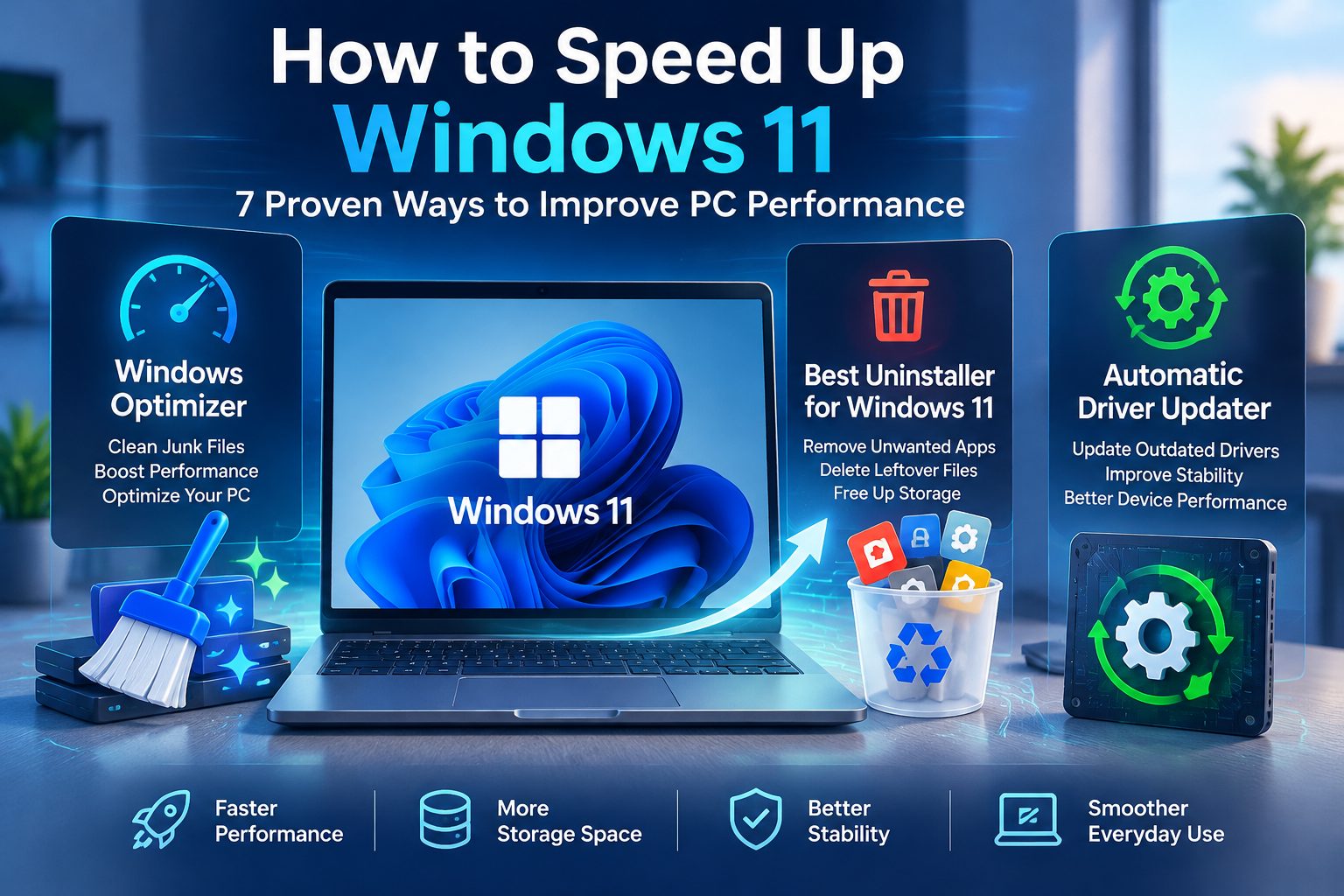
Windows 11 offers a modern desktop experience, but even a capable computer can become slower over time. Unnecessary startup applications, limited storage space, leftover files, and outdated device drivers can affect everyday performance. Whether you use your PC for remote work, gaming, studying, or business, regular maintenance can help keep it responsive and reliable.
The good news is that maintaining a Windows 11 computer does not always require expensive hardware upgrades. By managing installed applications, optimizing system resources, and keeping drivers updated, you can address common performance issues and make better use of your existing device.
Identify What Is Slowing Down Your Windows 11 PC
Before installing optimization software or changing system settings, identify the source of the problem. A slow computer may be experiencing high memory usage, limited disk space, excessive background activity, or an application that consumes too many system resources.
Open Task Manager by pressing Ctrl + Shift + Esc. Review the Processes tab to see which applications are using the most CPU, memory, and disk resources. The Startup apps section can also help you identify programs that launch automatically when you sign in.
Next, open Settings, navigate to System, and select Storage. Check how much free space remains on your system drive. If the drive is nearly full, Windows may have less room for temporary files and other operations.
Microsoft also recommends reviewing Windows updates, removing unnecessary applications, and managing startup programs when troubleshooting performance problems. Start with these built-in options before making more advanced changes.
Use a Windows Optimizer to Simplify PC Maintenance
Windows includes useful maintenance tools, but managing temporary files, startup applications, privacy settings, and other optimization tasks individually can become time-consuming. A dedicated Windows optimizer can provide a more convenient way to organize several maintenance activities.
IObit Advanced SystemCare is an option for users who want to simplify routine PC maintenance. It provides system cleaning and optimization features designed to help users manage junk files, startup items, and selected system settings from a centralized interface.
For example, cleaning unnecessary files can help recover storage space, while reviewing startup programs can reduce the number of applications competing for resources during boot. Depending on the condition of the computer, these steps may improve responsiveness or shorten startup times.
However, optimization software is not a substitute for diagnosing hardware limitations. A computer with insufficient RAM, a failing drive, or an aging processor may require a hardware upgrade or professional troubleshooting rather than additional cleaning.
For the best results, review scan findings before applying changes. Avoid deleting files you do not recognize, and create a restore point before making significant system modifications.
Remove Unnecessary Applications and Software Leftovers
Over time, users accumulate applications they no longer need. These may include expired trials, duplicate utilities, outdated programs, and software installed for a single task. Removing unnecessary applications can free disk space and reduce background activity.
Windows 11 lets you uninstall programs through Settings > Apps > Installed apps. This is a good starting point, but some applications may leave behind configuration files, folders, browser extensions, or other components after removal.
For users who frequently install and uninstall software, choosing the best uninstaller for Windows 11 can make application management more convenient.
IObit Uninstaller is designed to help remove unwanted programs and detect associated leftovers. Its approach can be particularly useful for users who want to keep their software collection organized without manually searching for every remaining file.
Before uninstalling anything, confirm that it is not required by Windows, your hardware manufacturer, or another application. Some shared components and drivers support essential functions, so removing unfamiliar software simply to reduce the installed-app count is not recommended.
A sensible routine is to review installed applications every few months, remove programs you genuinely no longer use, and restart your computer when an uninstallation requires it.
Keep Device Drivers Updated
Drivers allow Windows to communicate with hardware components such as graphics cards, network adapters, audio devices, printers, and Bluetooth accessories. When a driver is incompatible, corrupted, or outdated, certain devices may not function correctly.
Symptoms can include audio problems, unstable Wi-Fi, display glitches, device recognition errors, or unexpected crashes. These issues do not always indicate a driver problem, but checking driver status is a useful troubleshooting step when hardware behaves unexpectedly.
Windows Update can provide driver updates for supported devices. You can check for available updates through Settings > Windows Update and review optional updates when appropriate. For specialized hardware, the manufacturer’s official support website is another reliable place to look.
An automatic driver updater offers an alternative for users who prefer a more centralized driver-management process.
IObit Driver Booster is designed to scan for supported outdated drivers and help users manage updates from one interface. This can reduce the effort involved in checking multiple devices individually, particularly on computers with several peripherals or components.
Driver updates should still be handled carefully. Newer does not automatically mean better for every configuration. Before installing an update, check compatibility, save important work, and use backup or restore options where available. If a device works correctly and its manufacturer does not recommend an update, there may be no reason to change its driver immediately.
Manage Startup Applications and Background Activity
A computer that takes a long time to start may be launching too many applications automatically. Cloud storage utilities, messaging apps, game launchers, and other programs can consume resources even when you do not need them immediately.
To review startup behavior, open Settings > Apps > Startup or use the Startup apps section in Task Manager. Disable automatic startup for applications you do not need as soon as Windows loads.
Be selective. Security software, accessibility tools, synchronization services, and hardware utilities may need to run in the background to perform their intended functions. Disabling essential components can cause inconvenience or reduce protection.
You can also close applications that are no longer in use and review background permissions where Windows provides that option. If your computer becomes sluggish after extended use, a restart may help clear temporary issues and restore normal operation.
These simple adjustments often provide a practical starting point before you consider more advanced optimization methods.
Keep Windows Updated and Protect Your System
Performance maintenance should include security and reliability. Windows updates may contain bug fixes, compatibility improvements, and security patches. Keeping your system current can help address known issues and reduce exposure to vulnerabilities.
Open Settings > Windows Update, check for updates, and follow the installation instructions. Save your work before restarting, and make sure important files are backed up regularly.
You should also run periodic scans with Windows Security. Malware and unwanted software can consume system resources, interfere with normal operations, and create privacy risks. Avoid unfamiliar optimization utilities that promise dramatic speed improvements without explaining what they change.
When using third-party maintenance tools, download them from the developer’s official website and review installation options carefully. Avoid bundled offers you do not want, and check the settings before enabling automatic maintenance.
Build a Simple PC Maintenance Routine
Consistent maintenance is generally more useful than running aggressive cleaning tools whenever the computer feels slow. A straightforward routine can help you identify issues before they become disruptive.
Weekly: Check for unusual performance changes, close unnecessary applications, and confirm that important files are backed up.
Monthly: Review storage usage, remove unwanted applications, inspect startup programs, and install appropriate Windows updates.
Every Few Months: Review installed software, check for recurring hardware or driver problems, and evaluate whether your current maintenance settings are still useful.
If performance continues to decline, investigate the underlying cause rather than repeatedly running optimization scans. Check available memory and storage, review temperatures if overheating is suspected, and consider whether the hardware meets the demands of your workload.
Conclusion
Keeping a Windows 11 PC fast and reliable involves more than deleting temporary files. Managing startup applications, removing unnecessary software, maintaining compatible drivers, and installing Windows updates can all contribute to a healthier system.
IObit Advanced SystemCare, IObit Uninstaller, and IObit Driver Booster offer different approaches to these tasks: system optimization, application removal, and driver management, respectively. Choosing tools that address your actual needs—and reviewing their recommended changes before applying them—can make routine maintenance more manageable.
Combine these tools with Windows’ built-in maintenance features, regular backups, and sensible software-installation habits. This balanced approach can help you maintain a more organized PC, troubleshoot common issues more effectively, and get more value from your existing hardware.